3. Record Teleop Data from the Real Robot
This section explains how to record teleoperation sessions using tools from the SuperDex_lfd package. Recorded data can be replayed and used to train AI policies.
Required Equipment
- Laptop with an NVIDIA graphics card
- VR Headset
- RealMan RM65 robotic arm
Configuration
Start by applying the same configuration used in section 2a. Then, update the following parameters:
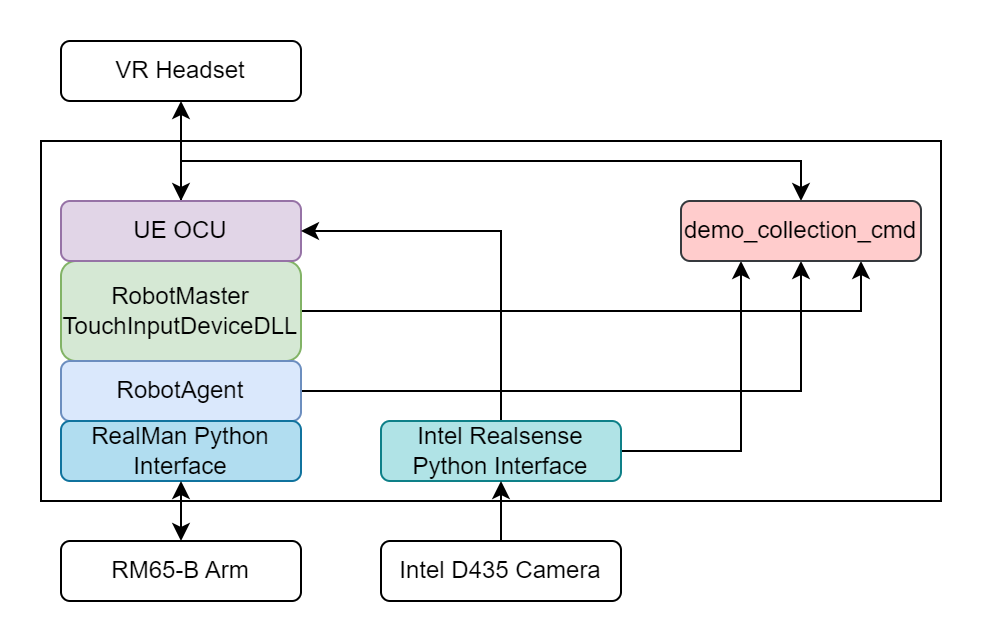
RobotOCUAndRobotSim_Release\bin\RobotAgent.prp
AgentStateDestIP = 127.0.0.1
AgentStateDestPort = 14110
HeartbeatPeriod = 30AgentStateDestIPandAgentStateDestPortmust be set to non-zero values and accessible. If not, the system will record zeroes.- Some users report performance issues when no program is listening on the destination port. If you experience latency, you can temporarily set
AgentStateDestPort= 0. HeartbeatPeriodcontrols the delay between state reports. Lower values increase temporal resolution.
RobotOCUAndRobotSim_Release\bin\Master.prp
This is only necessary if you turn on the with_master settings in the SuperDex_lfd configuration. If you don't plan to record the clutch pedal settings or anything else you add later, you can just leave these disabled.
MasterStateDestIP = 127.0.0.1
MasterStateDestPort = 14111
MasterStateFrequency = 10
.\RobotSim.ini
# enable the menu for interacting with demo_collection script
ShowAITrainingMenu = 1
Running the System
- Follow the steps in section 2a to get the robot and VR system running.
- Open the Data Collection section in
hrc-dexman/README.mdand follow the setup instructions.
- Configure the appropriate file.
- Run the script:
python SuperDex_lfd/apps/demo_collection_cmd.py- You can configure the script to use any shared texture stream from the RealSense camera, including stereo greyscale, RGB, or depth.
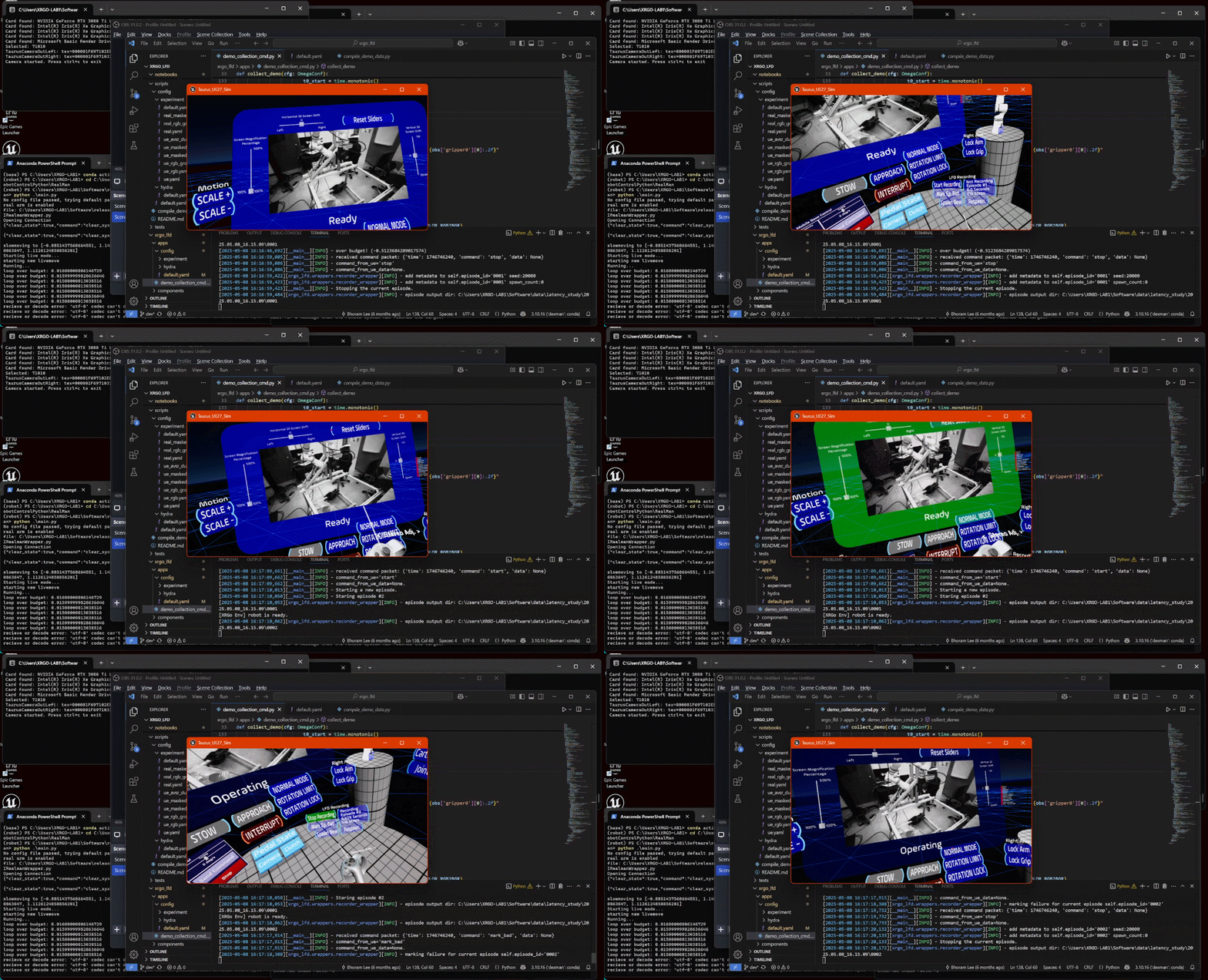
- Once the script is running, the OCU menu will become active.
- Use the buttons in the lower right to start and stop recordings.
- Use the "Mark Bad" button to flag episodes for exclusion. This can be done during or immediately after a recording.